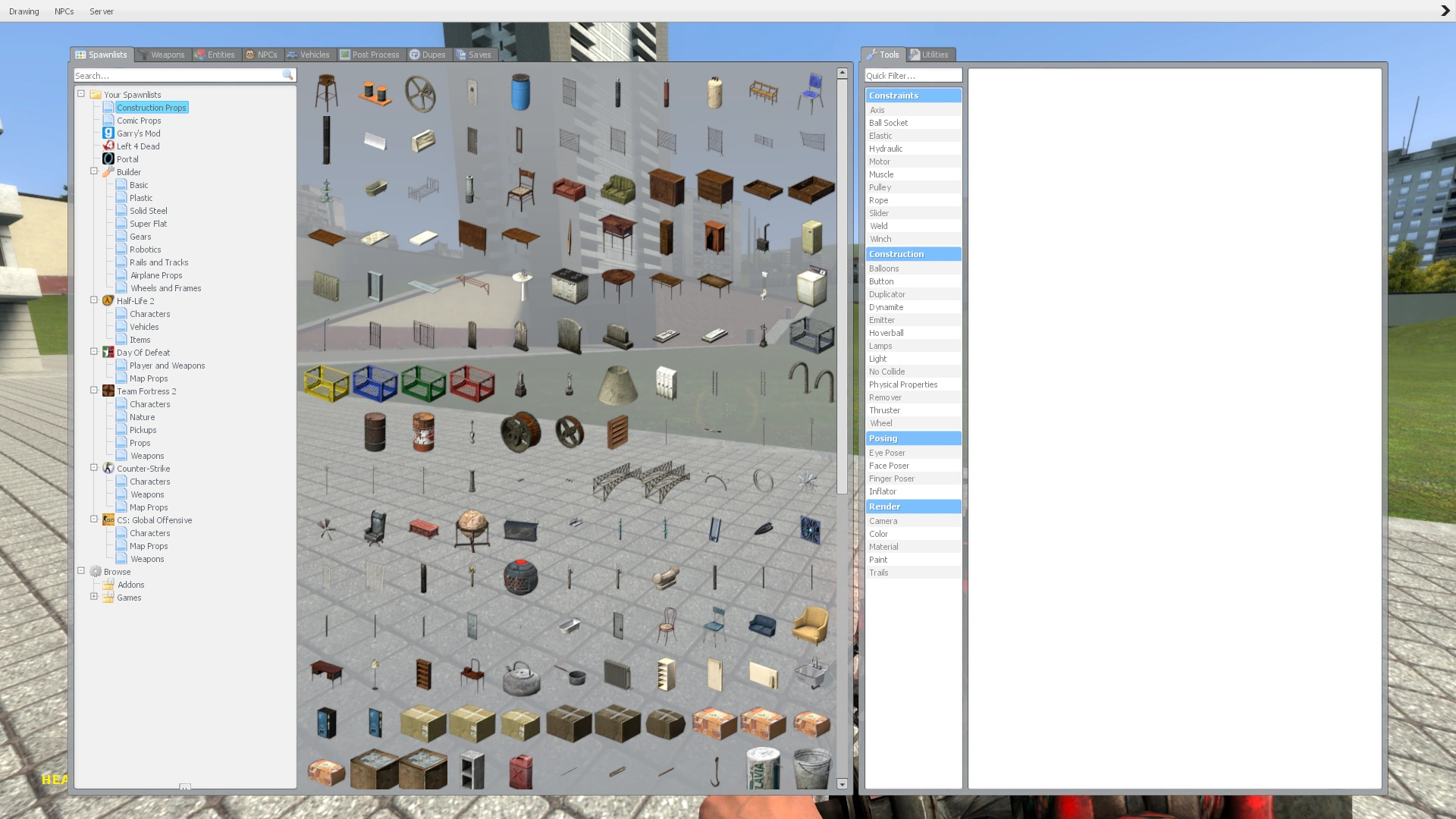

The spawn menu as seen when opened.
The Spawn Menu is possibly one of the most used menu in Garry's Mod, as it is used for various things. It is used to spawn things such as NPCs, Props, Ragdolls, Entities, Effects, Vehicles, and access your dupes and saves. They can all be interacted with using the Physgun or the Gravity Gun. The spawn menu was added in Garry's Mod 5.
Using the Spawn Menu
The spawn menu can be accessed by holding "Q" by default, and can be toggled by pressing "F1" by default. Simply hover over something you would like to spawn, and click it. Note: The object you choose to spawn will spawn where ever your cross-hair is. To undo an object, Push "Z" by default. To select the different categories to spawn by default only props, use the tabs located at the left of the Spawn Menu. To spawn entities other than props then select the tabs located at the top of the Spawn Menu.
Parts of the Spawn Menu
Tools Menu
The tools menu which is on the right side of the spawn menu is the primary place for the player to choose what tools for the Tool Gun to use. The tools menu can be fully retracted by clicking on the arrow on the top right of the screen when the spawn menu is open. Clicking on it when it is retracted will bring the tools menu back. The top of the tools menu will by default have a Tools and Utilities tabs. The Utilities tab is for customizing configuration and to undo and cleanup spawned entities.
Tabs
The tab at the top of the Spawn Menu the player starts with by default is Spawnlists. The Spawnlists tab is highly customizable. It will be at another section below. The other tabs are Weapons, Entities, NPCs, Vehicles, Post Process, Dupes, and Saves. The Weapons tab isn't at all customizable without the help of addons except for the weapon override NPCs will spawn with. The Entities, Vehicles, and Post Process tabs are also not customizable in any way without addons. Those tabs also have items separated by categories like the Spawnlists tab. The weapons in the weapons tab can be spawned to the world where the player is pointing at with the middle mouse button. The only thing customizable about the NPCs tab is the options menu to change settings about NPCs.
The Dupes and Saves tabs let the player create dupes and saves. The player may also view dupes and saves from other players uploaded to the Workshop. In the Saves tab, if the player tries to load a save that isn't the same map, then the game will without warning load such map. If the player doesn't have the map, then the game will send a window to the player saying that a Workshop item is needed with a button to it, or if the save is too old or the map wasn't in a Workshop item, the game will say that the map is missing.
Customizability and Context Menus
The Spawnlists tab is customizable. If you customize the spawn menu in a server, then other players will not have the changes applied to their spawn menus unless it is done by certain addons. The categories in the spawn menu are customizable except for those under the Browse category or certain addon spawnlists. The Browse category has two subcategories. One of those is Games and the other is Addons. Some categories can be renamed, deleted, moved, and have the icons changed. New categories can be made except under the Browse category. This customizability can be done by right clicking on the categories to open a context menu for those actions.
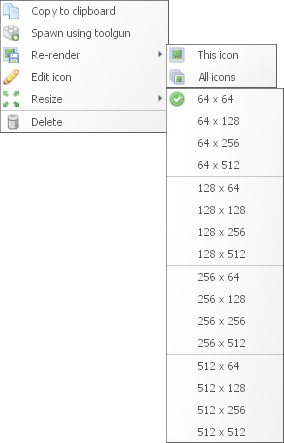

Context menu when right clicking on a prop on the spawn menu. Note: image has been edited to show all the buttons on the menu
The content (usually props) in categories can be customized by dragging icons or right clicking icons. Multiple icons can be selected. Spawn icons can be right clicked to open a context menu.
This context menu has "Copy to clipboard" which will usually copy an internal file path that always starts with "models/" and end with ".mdl" if it's a model or prop otherwise it will copy the classname of the entity. It has "Spawn using the toolgun", which it will switch the currently held weapon to the Tool Gun with a special Creator tool that is used for spawning objects. There is a re-render button which clicking on it will re-render the prop's spawn icon but there are 2 other menus beside it. One of those does the same as the re-render button but the other re-renders all the icons under the currently viewed category. The "Edit icon" button opens the Spawnicon Editor which contains many features. It will be explained later. The resize portion of this context menu lets the player resize icons by multiples of 64 per each axis from 64 squared to up to 512 squared resolution. If there are other spawn icons, some of those may be shifted away of a spawn icon resized to be larger or shifted back if a spawn icon becomes smaller. Spawn icons can be deleted, which it wouldn't delete the prop from the game. If such prop is found in the browse category again, the prop can be dragged back to it without removing the prop from the browse category.
The only two buttons available to the context menu when used in the Entities, NPCs, and Vehicles tabs are "Copy to clipboard" and "Spawn using toolgun" while the Weapons tab has those two and another button available to certain weapons named "Use as NPC weapon override". The context menu can't be open in the Post Process, Dupes, and Saves tabs. If an item from the Weapons, Entities, NPCs, Vehicles, or Post Process tab gets dragged to the Spawnlists tab, the item can be placed. This added an extra button to the context menu of such items called delete.
The context menu can also be opened on the tabs at the top of the Spawn Menu. Doing so will create a button of each tab for the player to change to. By default, there are three tabs at the top left of the screen that clicking on will open a context menu. One of those is Drawing. It shows options such as Draw Physgun Grab Halo, Draw Spawn Effect, and Hints. The Wireframe option requires the sv_cheats console variable to be 1. The NPCs tab will open certain settings for NPCs. Those settings are the same as what shows what the other NPC tab of the Spawn Menu window shows. The Server tab shows server configuration, which all of those except for Enable supercharged Gravity Gun can be accessed in the Utilities tab at the top of the tool menu.
Spawnicon Editor
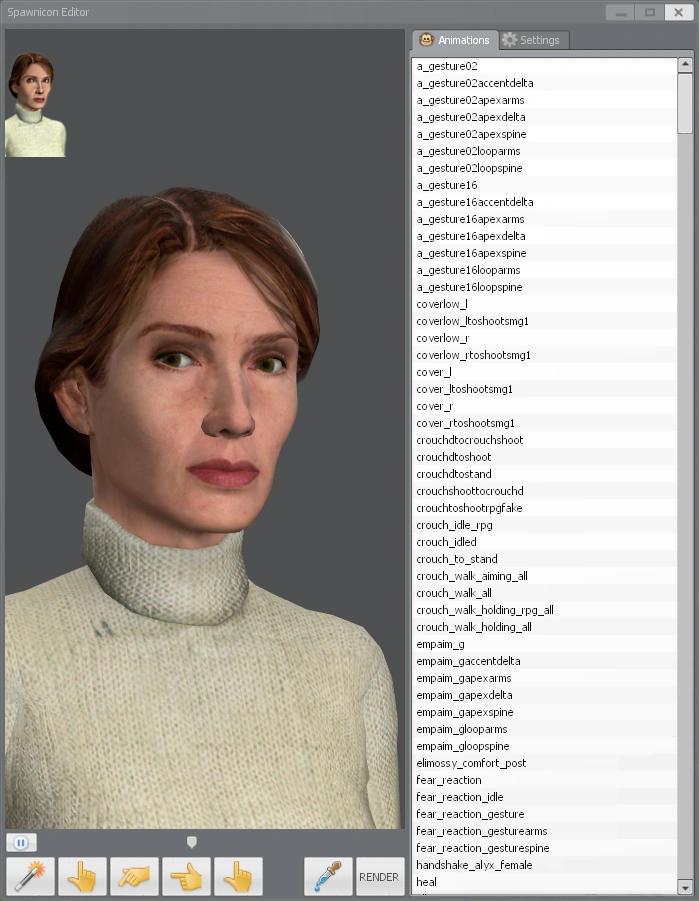

Spawnicon Editor
The Spawnicon Editor allows a player to edit a rendering to his or her preference. The Animations tab is selected when the menu is open. The animation can be selected. The spawn icon already previously rendered will appear on the top left of the menu. There is a magic wand button which will attempt the game's best guess for the camera's position and rotation. The buttons next to it are labeled: front, above, right, center. Those buttons change the rotating and position of the camera. It appears that the front button makes the camera point to the model from the back rather than front. This behavior is unlike the other 3 buttons. Above the magic wand button, there is a pause button which will pause the animation being played on a model. Besides that is a slider of the animation's frames. Unfortunately, if the model uses a multi frame animated texture then the pause button will not pause the texture and you may have to press the render button multiple times or pause and unpause the game multiple times to get the texture right on the icon. There is also a render button and beside it, a button to select a model from another entity. Selecting the button will temporary hide the menu. Selecting the world or the void will bring back the menu but with the same model as before. There is another tab besides animations called Settings. When this tab is selected, it will add settings such as the camera's rotation, the camera's position, the camera's FOV, the entity's rotation, playback speed, move speed, show origin, and show bounding box to the game menu.
History
GMod 5: Added spawn menu.
GMod 6: Added tabs
GMod 8: New layout.
GMod 9: Added icons.
GMod 10: Redesigned again
GMod 11: Small changes
GMod 12: Small changes?
GMod 13: Changed left side of spawn menu, moved Post Processing to left side.
Gallery


